 Flipic
How to cull hundreds of event photos on a Mac
Updated 2026-10-31
The slow part of an event shoot isn't editing; it's finding the fifty usable frames among hundreds. This workflow runs in Flipic alone, with no catalog import.
1. Let the app find the obvious rejects
Open the folder in Flipic and press ⇧⌘K for Cleanup Mode (Beta). It checks every photo on your Mac and groups similar bursts, exact duplicates, closed eyes and blurry or out-of-focus shots, suggesting the sharpest blink-free frame of each burst.
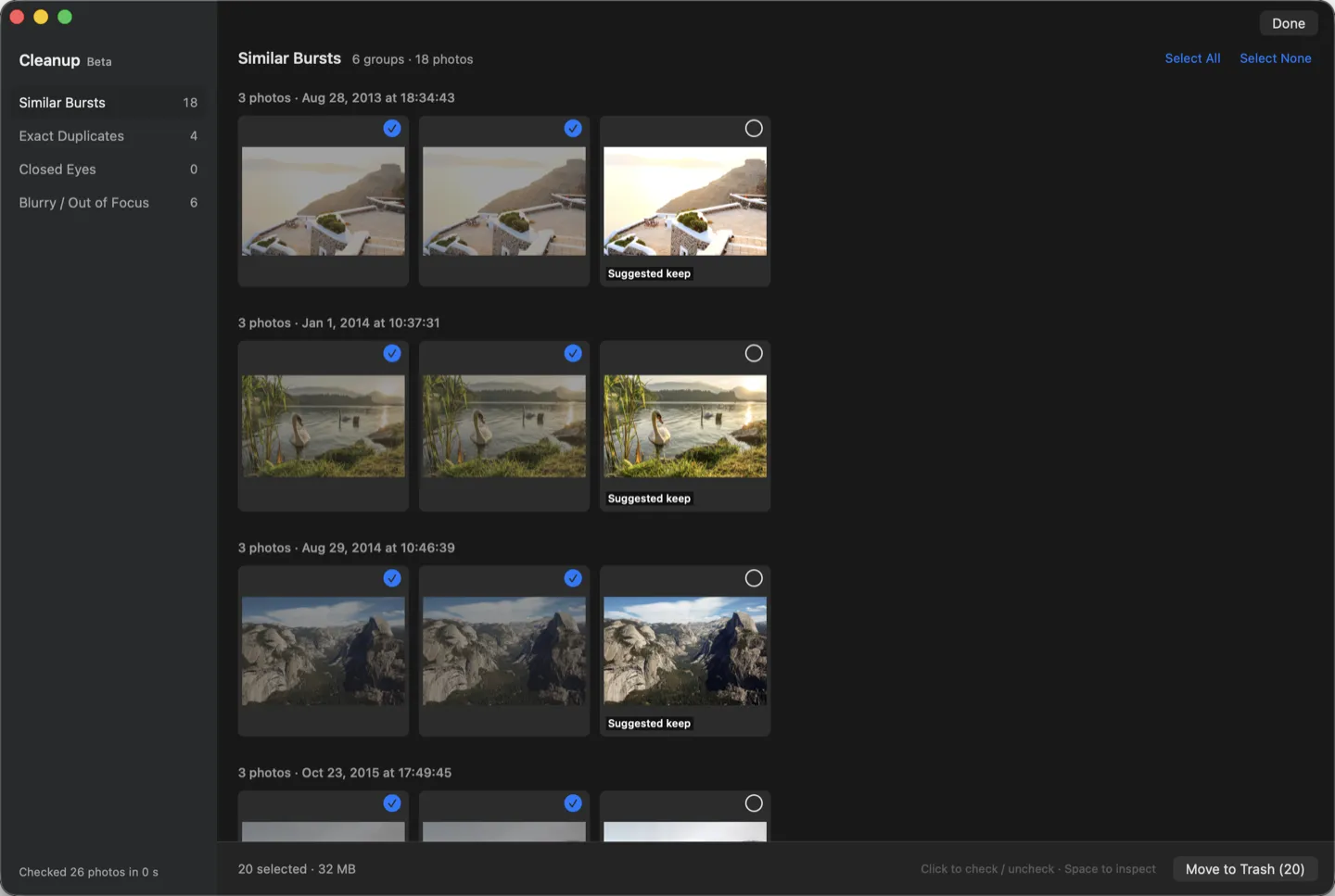
Nothing is deleted until you press Move to Trash, and ⌘Z undoes it. Detection can be wrong, so look before you delete.
2. Page through and rate
Press → through what's left and 1–5 to rate. Rest the pointer on a face and press 0 to check focus at 100%. Or run a slideshow, click to pause on a good one, rate it, click to resume.
Ratings are standard XMP: inside JPEG and HEIC files, in a same-name .xmp sidecar for proprietary RAW, leaving the RAW untouched.
3. Hand the keepers to your editor
Choose Lightroom, Photoshop or Capture One in Settings and press ⌘E on a photo to open it there, the RAW if one sits next to the JPEG. Lightroom picks up the star ratings on import, so you can filter by them right away.
Flipic is a free, open-source image viewer for Mac: double-click one photo and page through the whole folder with the arrow keys.
- Free and open source
- 1.8 MB download
- macOS 13 or later
- Apple silicon and Intel
- Notarized by Apple
- Offline by default
Flipic is a Mac app and can't be installed on a phone. Copy the address and open it in a browser on your Mac.