 Flipic
How to see the next image in Mac Preview
Updated 2026-10-31
Double-click a photo in Finder and Preview opens that one file; the arrow keys go nowhere because Preview only knows about the files you handed it. Here are three ways around that, from most to least effort.
1. Select all in Finder, then open
- Open the folder in Finder and press ⌘A.
- Press ⌘↓ (or choose Open). Every image lands in one Preview window.
- Use ↑ ↓ or ← → to move between them; thumbnails sit in the sidebar.
You have to go back to Finder every time, and opening hundreds of files at once is slow.
2. Use Quick Look with Space
Select several images in Finder (or ⌘A), press Space, then ← → to step through the selection. Press Space or Esc to close.
Fine for a glance; awkward for zooming, reading EXIF or deleting.
3. Use Flipic and just press the arrow keys
Flipic is a free, open-source image viewer for Mac. Double-click any photo and press → for the next one in the folder, no selecting first.
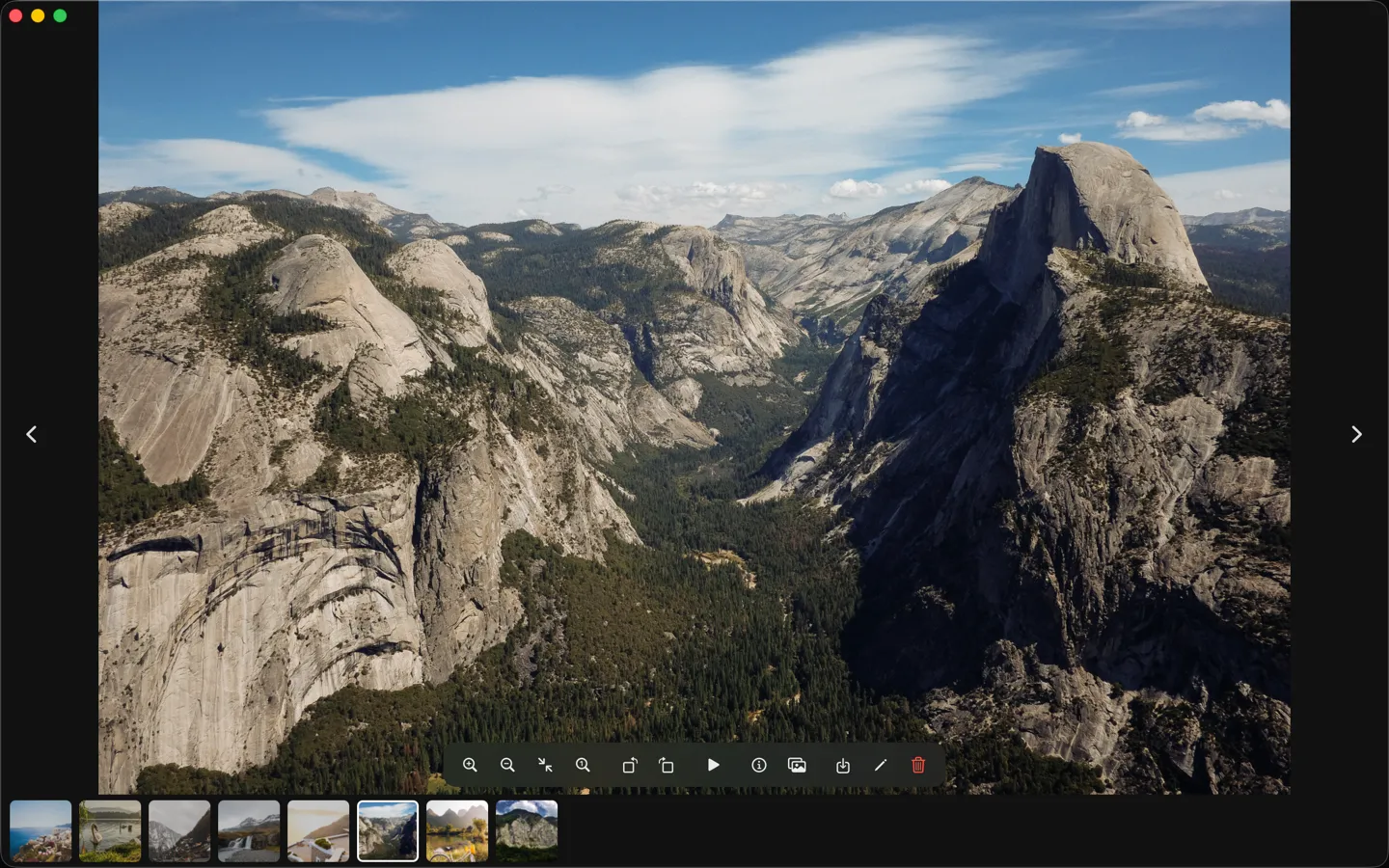
To make Flipic open photos by default, click Make Default Viewer in Settings (⌘,), or Control-click an image in Finder, hold ⌥ and choose Always Open With › Flipic.
It then works like Quick Look: select a photo, press ⌘↓, page with the arrows, and with Esc Closes Window turned on, press Esc to go back to Finder.
Flipic is a free, open-source image viewer for Mac: double-click one photo and page through the whole folder with the arrow keys.
- Free and open source
- 1.8 MB download
- macOS 13 or later
- Apple silicon and Intel
- Notarized by Apple
- Offline by default
Flipic is a Mac app and can't be installed on a phone. Copy the address and open it in a browser on your Mac.